Networking on LinkedIn® is easier than ever with QR codes. Instead of searching for someone by name, you can scan or share a LinkedIn® QR code to instantly access their profile. Whether you’re at a conference, an interview, or a client meeting, knowing how to generate LinkedIn® QR code can save time and make connecting seamless. Here’s a step-by-step guide.
What is a LinkedIn® QR Code?
A LinkedIn® QR code is a unique, scannable code that links directly to your LinkedIn® profile. Instead of asking someone to search for your name among thousands of results, they can simply scan the code with their smartphone camera or the LinkedIn® app and land on your profile instantly.
Think of it as a digital shortcut to your professional identity — one scan can show your experience, skills, recommendations, and recent posts. Because the LinkedIn® QR code never changes unless you update your profile URL, you can reuse it across business cards, resumes, event materials, or email signatures.
In short: your LinkedIn® QR code eliminates friction, making it easier for people to connect, follow, and engage with you in real time.
Read more—-> How to export contacts in LinkedIn®?
Why Use a LinkedIn® QR Code?

- Faster Networking: Share your code at events instead of spelling out your name.
- Professional Branding: Add it to business cards, resumes, or presentations.
- Recruiting & Sales: Make it easier for prospects, candidates, or clients to connect with you.
- Digital-first Communication: A simple way to bridge offline and online networking.
How to Generate LinkedIn® QR Code (Mobile App)
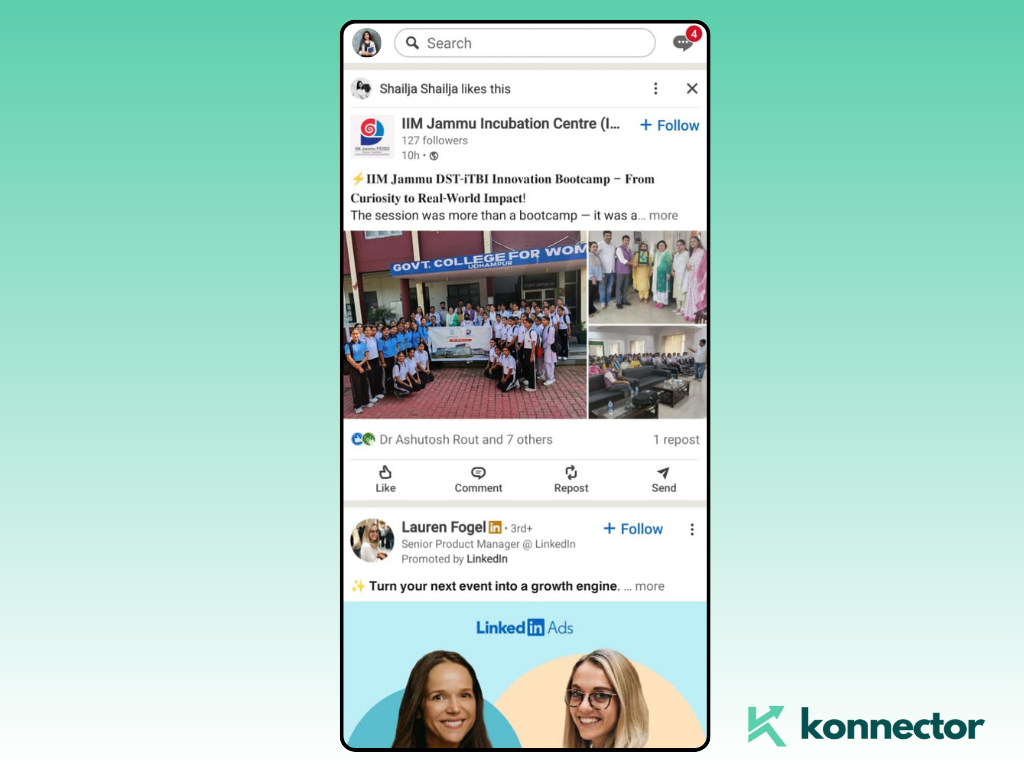
1. Open the LinkedIn® mobile app on your phone.
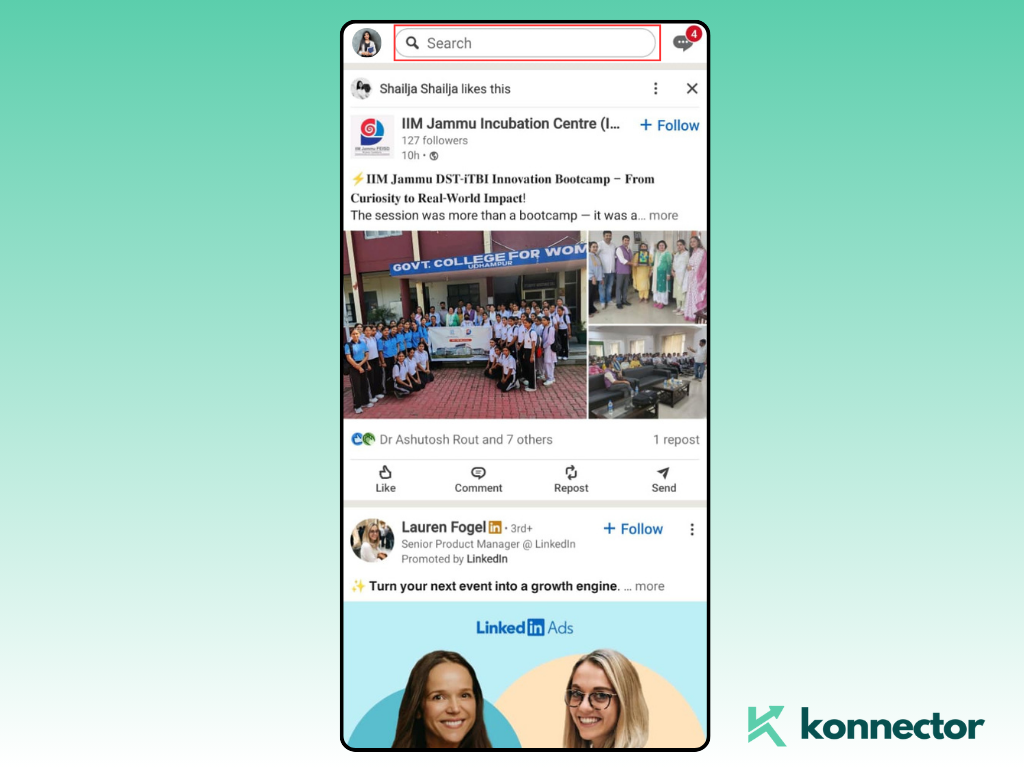
2. Tap the Search bar at the top of your home screen.
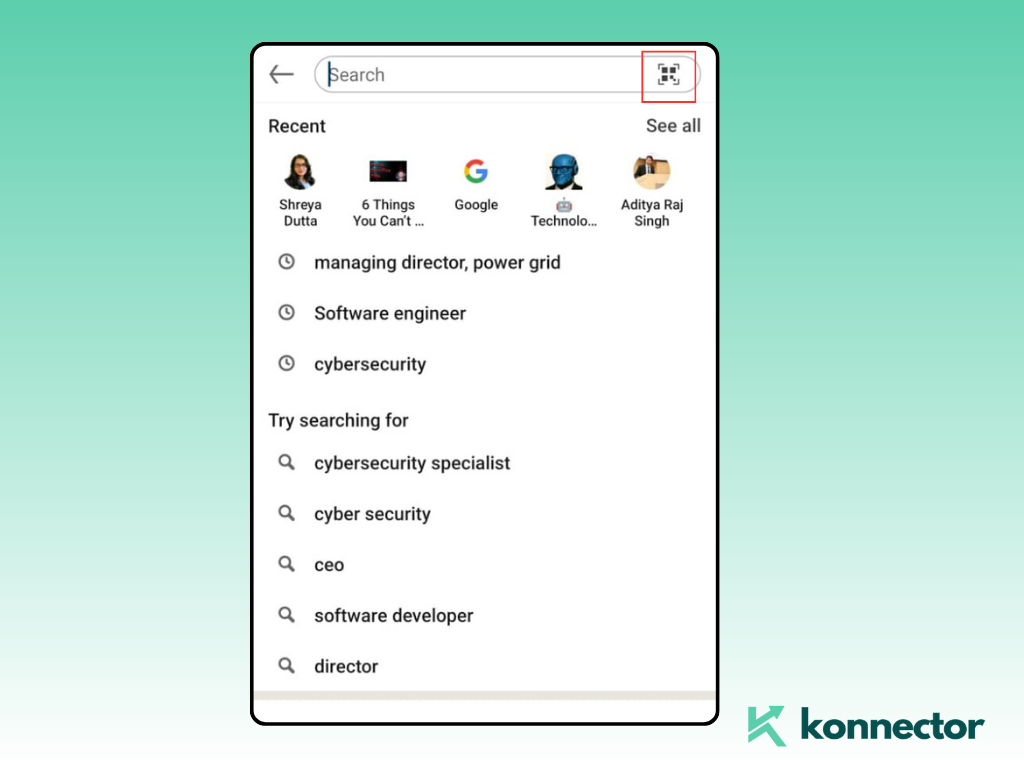
3. On the right side, tap the QR code icon.
4. Here, you’ll see your personal LinkedIn® QR code.
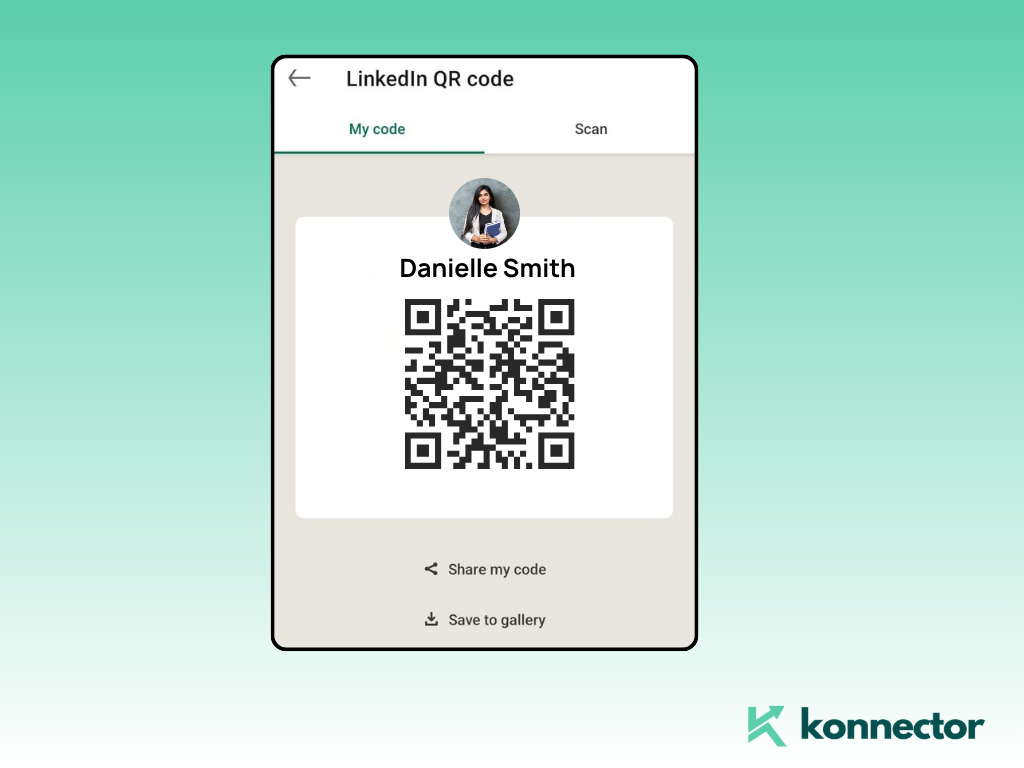
5. You can download the code as an image or share it directly via messaging apps or email.

How to Generate LinkedIn® QR Code (Desktop)
LinkedIn® doesn’t yet provide a built-in option to create a LinkedIn® QR code directly from the desktop version. The official QR feature is only available inside the mobile app.
That said, you can still use your desktop in a couple of simple ways:
- Generate on mobile first: Open the LinkedIn® app, tap the search bar → QR icon → My Code, then save your personal LinkedIn® QR code image.
- Transfer the image: Email the saved QR to yourself, upload it to Google Drive, or use AirDrop/WhatsApp Web to move it from your phone to your desktop.
- Reuse across documents: Once on your computer, you can easily insert your LinkedIn® QR code into resumes, presentations, brochures, or even add it to your website footer.
- Create a company LinkedIn® QR code: For pages, copy the LinkedIn® Company Page URL on desktop and run it through a free online QR code generator. This way you get a scannable image that points directly to your company presence on LinkedIn®.
Tip: Always test your LinkedIn® QR code on both iOS and Android devices before publishing it in print or sharing it widely.
How Others Can Scan Your QR Code
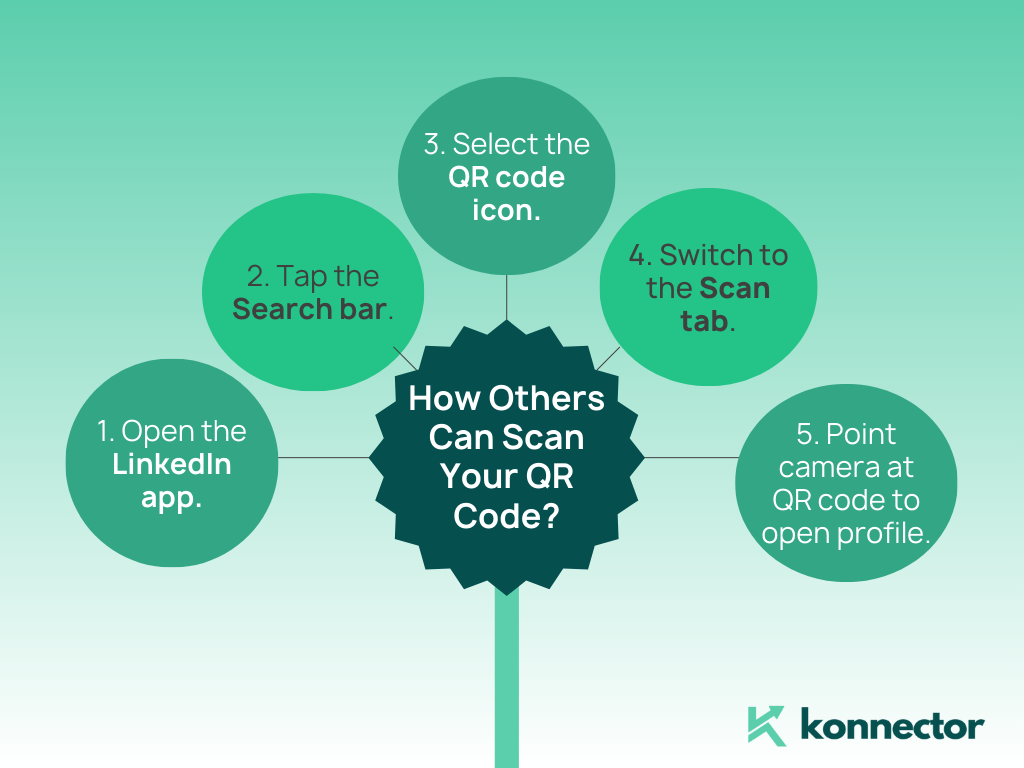
- Open the LinkedIn® app.
- Tap the Search bar.
- Select the QR code icon.
- Switch to the Scan tab.
- Point the camera at the QR code to instantly open the profile.
Read more—-> How to become a LinkedIn® Top Voice?
Best Uses of a LinkedIn® QR Code
- Business Cards: Printing your LinkedIn® QR code on a business card lets new contacts scan and connect instantly. Benefit: No need to type long profile URLs — you increase the chance of follow-through after networking.
- Resumes & Portfolios: Adding a LinkedIn® QR code to your CV or portfolio makes it easy for recruiters to see your full profile and recommendations. Benefit: Helps you stand out and gives employers a deeper view of your experience beyond the PDF.
- Event Badges: A LinkedIn® QR code on your badge simplifies networking at conferences and trade shows. Benefit: Attendees can connect with one scan, saving you from juggling business cards or remembering names later.
- Email Signatures: Placing your LinkedIn® QR code in your signature allows colleagues, clients, or prospects to connect after every email you send. Benefit: Builds your professional network organically with zero extra effort.
- Presentations: Closing a pitch deck or webinar with your LinkedIn® QR code gives the audience a simple call-to-action. Benefit: Ensures your message continues beyond the room, turning viewers into connections.

Conclusion
Knowing how to generate LinkedIn® QR code can supercharge your networking. In just a few clicks, you can create a scannable link to your professional profile and make it easier for clients, employers, or peers to connect with you. Use it wisely—whether on business cards, resumes, or digital communications—to stand out and strengthen your personal brand.
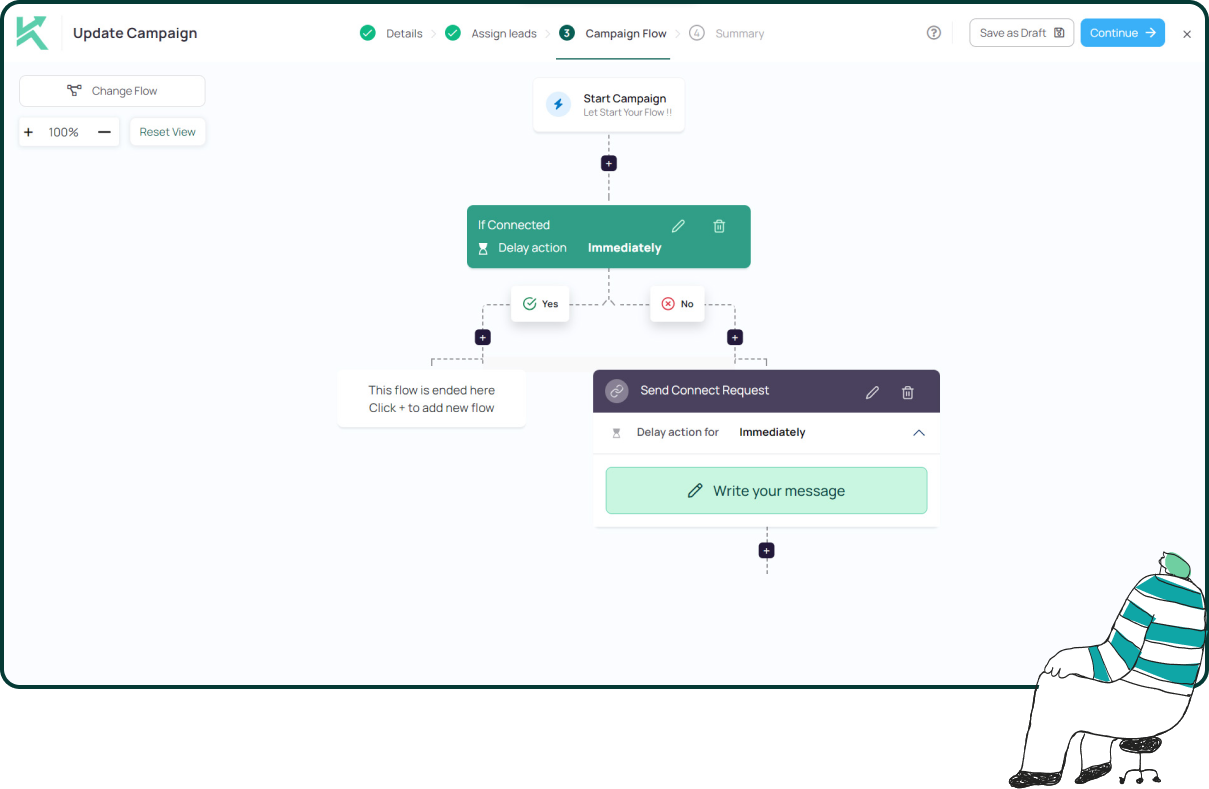
11x Your LinkedIn® Outreach With
Automation and Gen AI
Harness the power of LinkedIn® Automation and Gen AI to amplify your reach like never before. Engage thousands of leads weekly with AI-driven comments and targeted campaigns—all from one lead-gen powerhouse platform.
Frequently Asked Questions
No, a LinkedIn® QR code never expires as long as your profile URL stays the same.
Not directly. You can only create it through the LinkedIn® mobile app and then transfer the image to your computer.
Open the LinkedIn® app, tap the search bar, select the QR icon, and choose “Scan.”
Yes, just copy your company page URL and use any QR generator to create a scannable code.
LinkedIn®’s built-in QR is standard, but third-party generators let you change colors or add branding.
Great spots include business cards, resumes, event badges, presentations, and email signatures.
No. Scanning opens the profile, and the person still has to choose “Connect” or “Follow.”
Not within LinkedIn®. You’ll need a URL shortener or QR tool with analytics to see scan counts.
Yes, it only links to your profile, which is already searchable. Adjust privacy settings if needed.
For business cards, make it at least 2.5–3 cm square. For posters, go larger so it scans easily from a distance.