If you’re a business owner, marketer, or startup founder, building a LinkedIn® Company Page is one of the smartest things you can do to establish credibility, attract talent, and generate leads. Whether you’re just getting started or rebranding, this step-by-step guide will help you create a professional LinkedIn® Company Page that stands out.
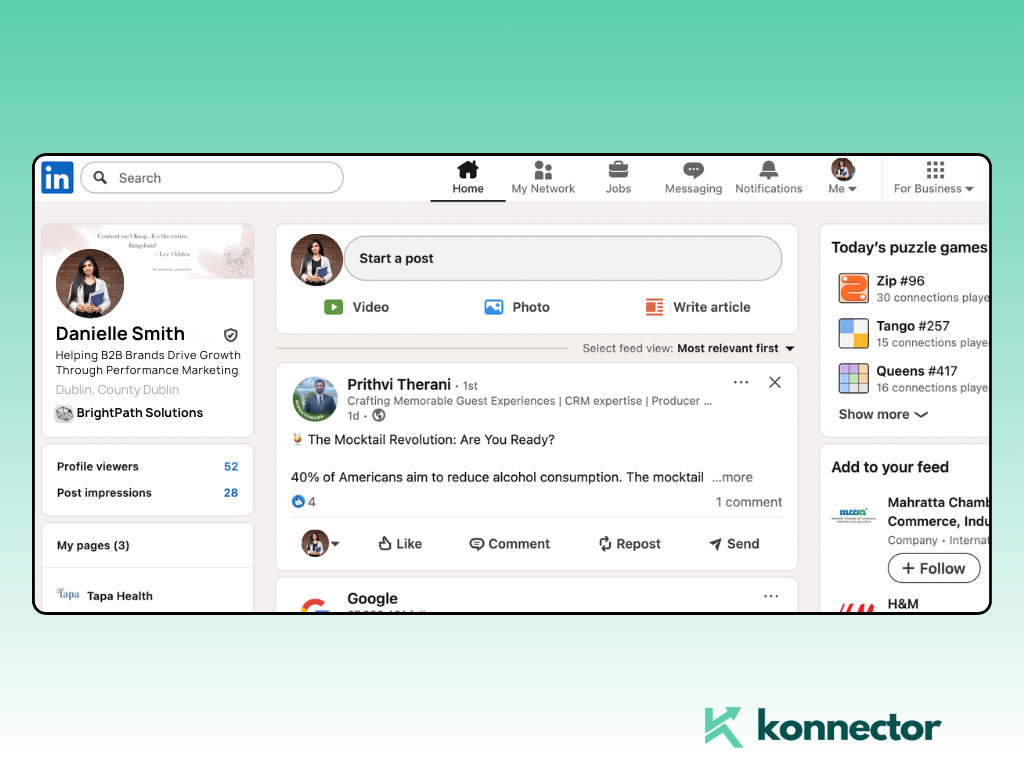
Step 1: Log In to LinkedIn® with Your Personal Account
To create a Company Page, you must be logged into a personal LinkedIn® account that has a confirmed email address. Note: You cannot create a Company Page anonymously or without a personal profile.
Step 2: Click “Create a Company Page”
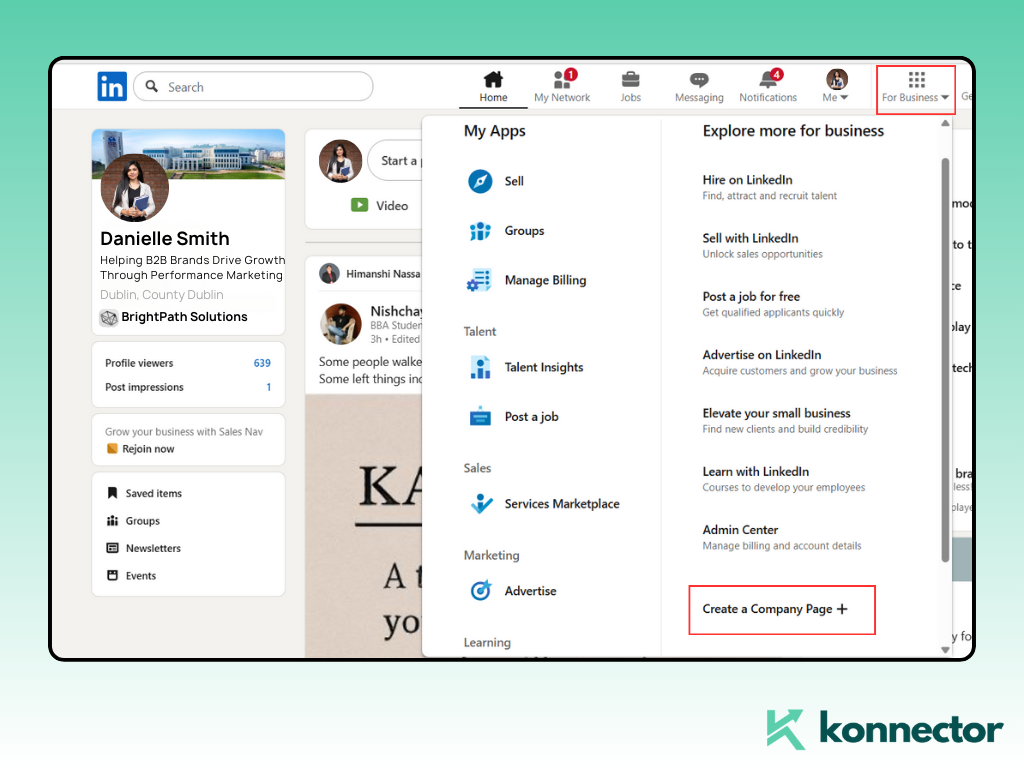
Go to the LinkedIn® homepage, click on the “Work” icon (grid symbol) in the top-right corner, scroll to the bottom and select “Create a Company Page.” Alternatively, visit: https://www.linkedin.com/company/setup/new/
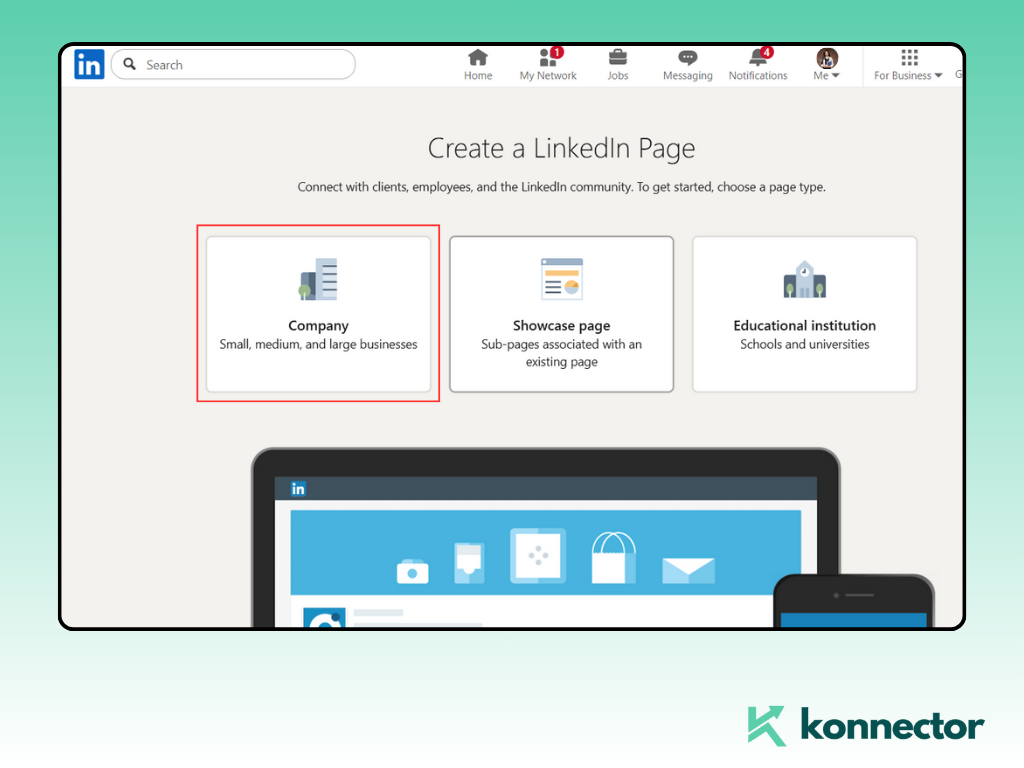
Step 3: Choose the Right Page Type
LinkedIn® offers 4 types of pages. Choose the one that fits your organization:
- Company: For small to large businesses
- Showcase Page: For sub-brands or business units of a parent company
- Educational Institution: For universities, colleges, or schools
- Page for Nonprofits: For organizations operating under a nonprofit structure
For most users, the standard “Company” page is the right choice.
Step 4: Enter Company Details
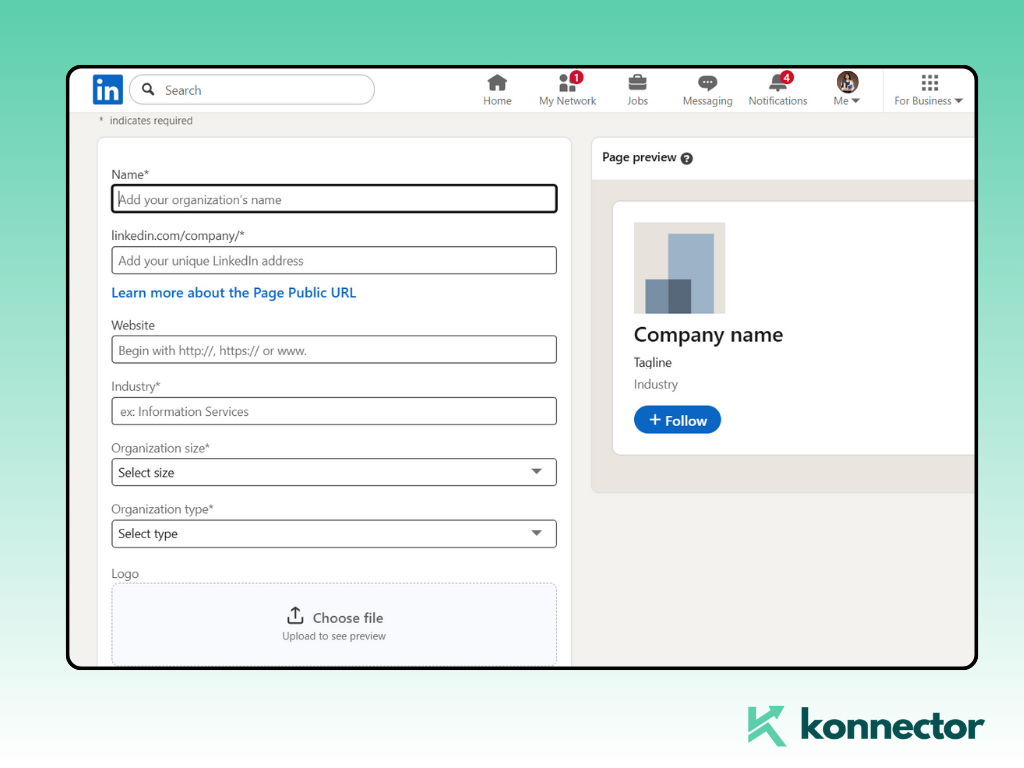
Fill out the form with accurate company information:
- Page Name: Your company’s official name
- LinkedIn® Public URL: This becomes your page’s web address (e.g., linkedin.com/company/yourcompany)
- Website: Add your official website URL
- Industry: Select your primary industry
- Company Size: Choose number of employees
- Company Type: Select whether you’re privately held, public, nonprofit, etc.
- Logo: Upload a square logo (300 x 300 px recommended)
- Tagline: Write a short, clear sentence that describes what your company does
Read more—-> How to automate LinkedIn® for free with Konnector.ai?
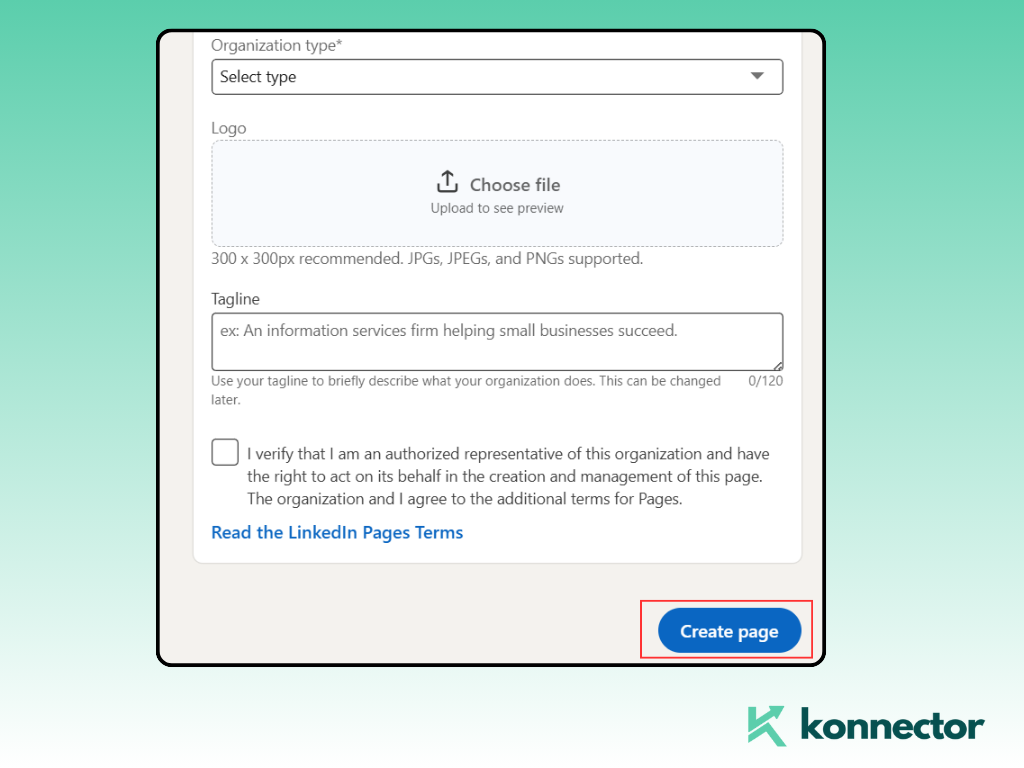
Step 5: Click “Create Page”
Once all required fields are complete, click the Create Page button. If any mandatory information is missing, LinkedIn® will highlight it in red. If you get an error, make sure your personal LinkedIn® account is more than 7 days old, your email is verified, and you have a strong LinkedIn® profile (LinkedIn® uses this as a quality filter).
Step 6: Build Out Your Company Page
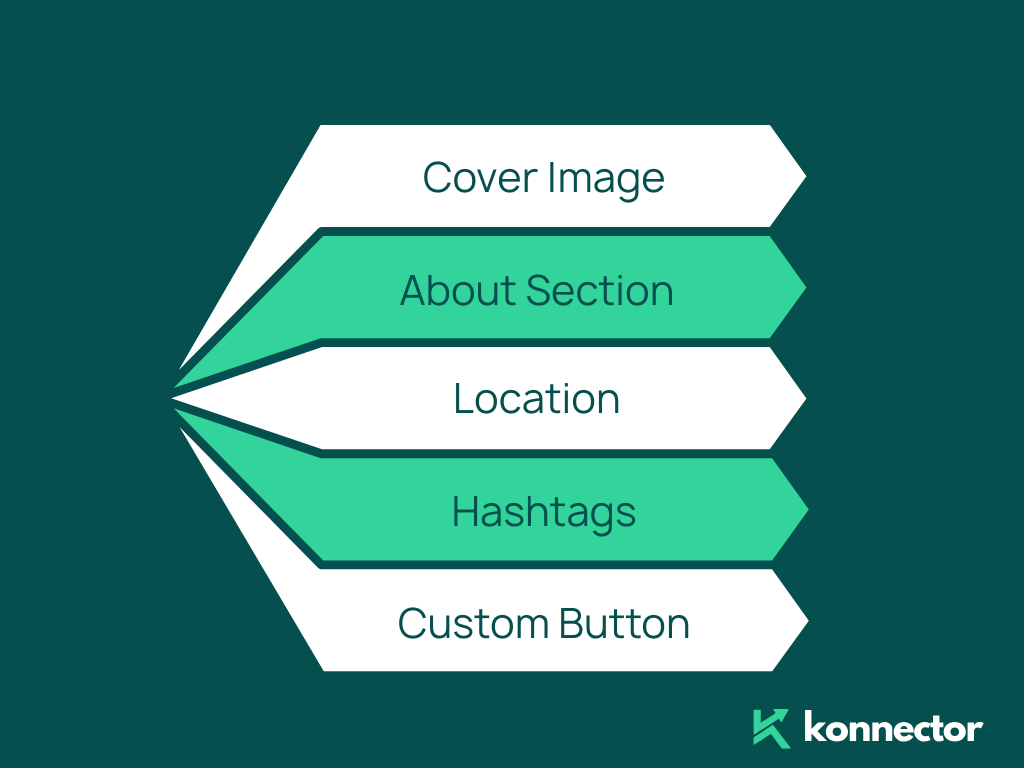
Once your page is created, you’ll land on the admin dashboard. From here, you can start customizing and optimizing your Company Page:
- Cover Image: Upload a banner (1128 x 191 px recommended) that reflects your brand
- About Section: Add a compelling company description (max 2,000 characters)
- Location: Add one or more office addresses
- Hashtags: Choose up to 3 community hashtags to associate with your page
- Custom Button: Add a CTA like “Visit Website” or “Contact Us” with a link
Step 7: Invite Your Connections to Follow
LinkedIn® lets you invite up to 250 connections per month to follow your company page. This is an excellent way to build your initial audience. Click “Admin Tools” > “Invite Connections” > Select who you’d like to invite.
Step 8: Start Posting Content
Keep your page active by regularly posting content:
- Company updates
- Blog links
- Hiring announcements
- Milestones and achievements
- Behind-the-scenes content
- Thought leadership posts
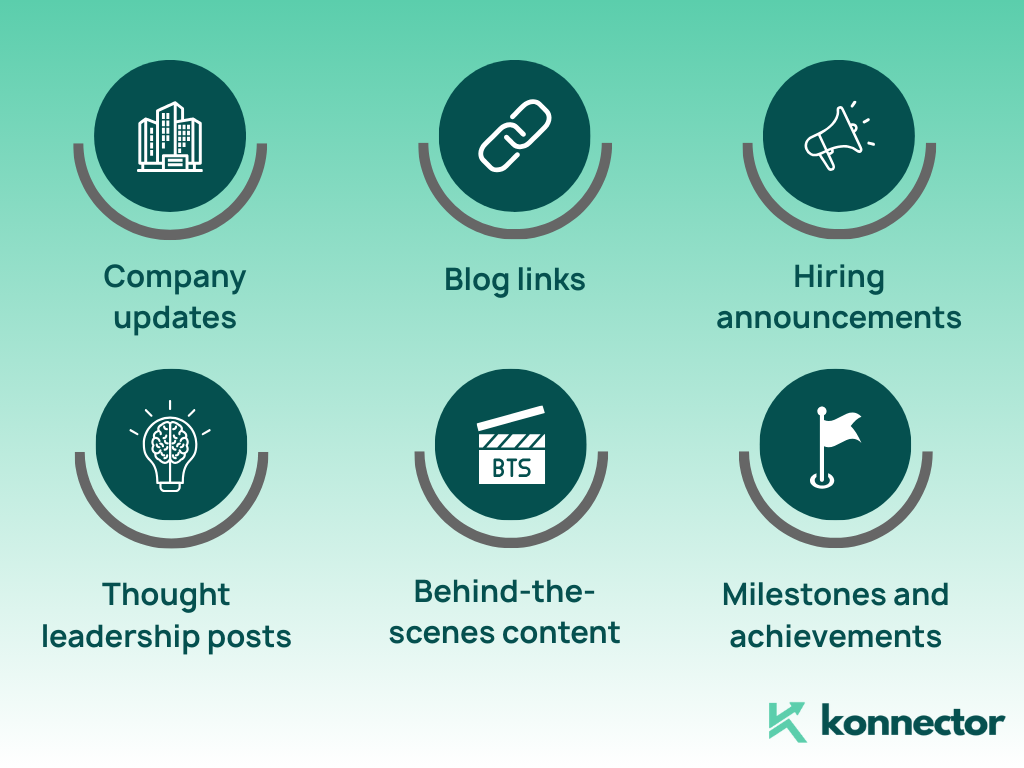
Use relevant hashtags, tag employees, and encourage your team to reshare.
Step 9: Add Admins and Team Members
To give others access to manage the page: go to the Admin Tools dropdown, select “Manage Admins,” click “Add Admin” and enter their name, then assign a role (Super Admin, Content Admin, Analyst, etc.)
Read more—-> How to add CV in LinkedIn®?
Step 10: Monitor Performance
Go to the Analytics tab to track performance: visitor insights, follower growth, post engagement, and demographics. Use this data to optimize content, post timing, and targeting.
Final Thoughts
Creating a LinkedIn® Company Page is your gateway to building brand presence, attracting talent, and connecting with decision-makers. With just 10 simple steps, you can set up a professional, optimized company page and start growing your audience. Be sure to keep it active, visually appealing, and aligned with your company’s voice.
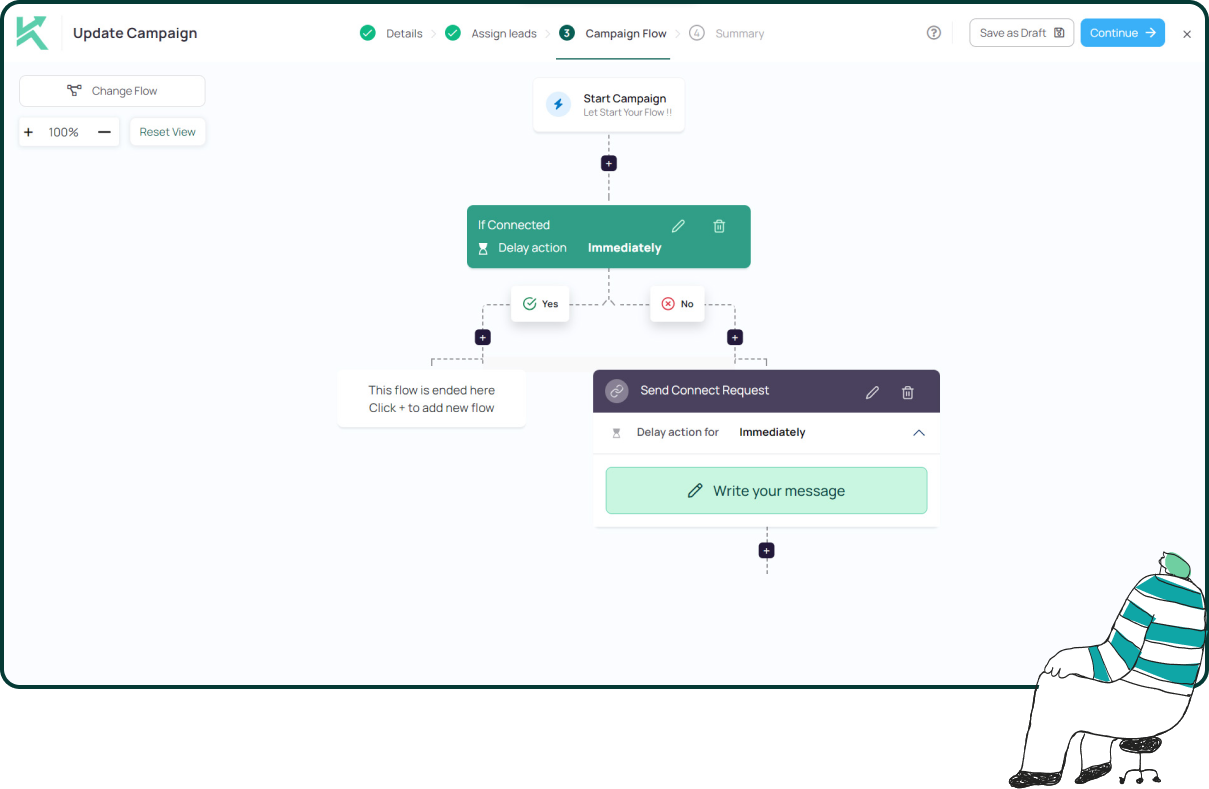
11x Your LinkedIn® Outreach With
Automation and Gen AI
Harness the power of LinkedIn® Automation and Gen AI to amplify your reach like never before. Engage thousands of leads weekly with AI-driven comments and targeted campaigns—all from one lead-gen powerhouse platform.
Frequently Asked Questions
No, LinkedIn® requires a personal profile to create a Company Page. Your account must have a verified email address and be at least a few days old.
You can set up a basic LinkedIn® Company Page in under 10 minutes. However, optimizing it with branding, content, and details may take additional time.
Yes, creating and managing a LinkedIn® Company Page is completely free. However, LinkedIn® offers paid advertising options if you want to promote your page or posts.
Logo: 300 x 300 pixels (square)
Cover Image: 1128 x 191 pixels
Using the correct dimensions ensures your page looks professional.
You may face issues if:
Your profile is new or incomplete
Your email is not verified
You have limited connections
You’ve already created multiple pages
LinkedIn® uses these checks to prevent spam.
A Company Page represents your main business, while a Showcase Page is used for specific products, services, or sub-brands under your company.
Start by inviting your connections, posting regularly, using relevant hashtags, and encouraging employees to engage and reshare content.
Posting 2–4 times per week is a good starting point. Consistency matters more than frequency, so maintain a regular posting schedule.
Yes, you can assign multiple admins with different roles such as Super Admin, Content Admin, or Analyst to help manage the page.
Use LinkedIn® Analytics to track metrics like follower growth, post engagement, visitor insights, and audience demographics to refine your strategy.